 Download Webpage as PDF
After installing Download Webpage as PDF
Pin it to your toolbar
Then a PDF of the page you are reading is one click away, on pages that Chrome can print.
Click the puzzle icon
Click the pin next to Download Webpage as PDF
Save a page as a PDF
-
Open the page you want to keep
An article, a receipt, a ticket or a guide. Let it load first.
-
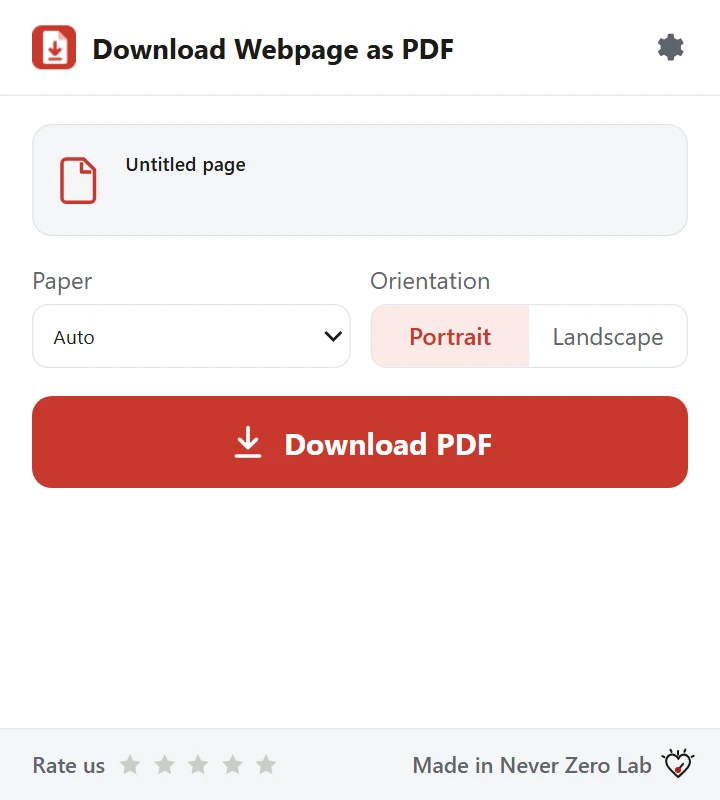
Click the icon and press Download PDF
Pick the paper and orientation first if you like. The file is saved where your browser’s download settings say, or where you choose if Ask where to save each file is on.
-
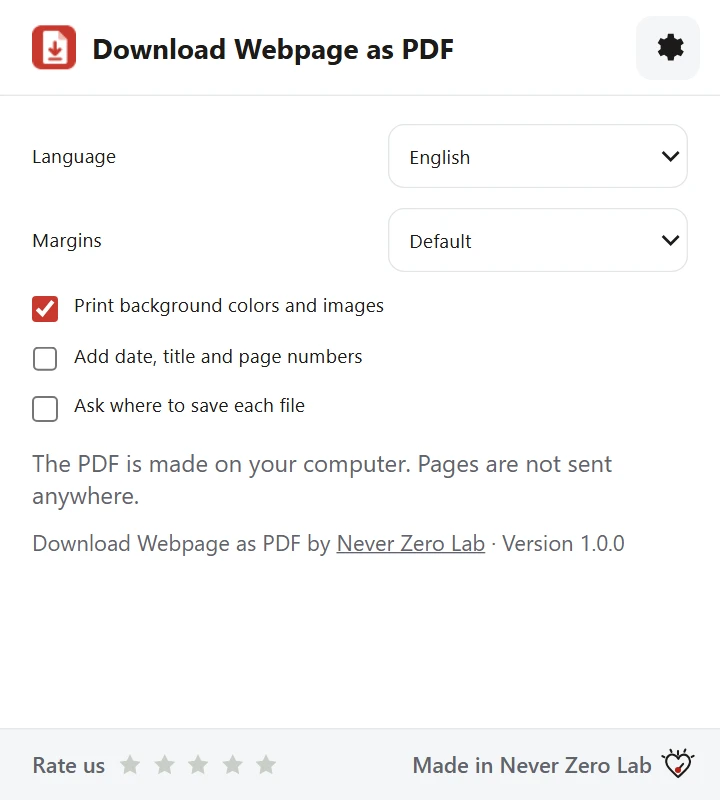
Fine-tune in Settings
Margins, background colors and images, date, title and page numbers, and whether to ask where to save each file. Your choices are remembered.


What Chrome shows you
When you install the extension, Chrome warns that it can access the page debugger backend. Chrome shows this warning for every extension with this permission. Here it is used only to print the tab you choose, after you press the button.
-
While the PDF is being made, Chrome shows a bar at the top saying that the extension started debugging this browser. The bar closes when the PDF is ready. Its cancel button stops the job.
The PDF is made on your computer. The extension does not upload the page.
Good to know
- The PDF looks the way Chrome prints the page. Some sites have their own print styles, so the result can differ from the screen.
- Before printing, the extension tries to load pictures that appear only as you scroll. Some pages may still leave content out.
- It saves the current tab only: no batch saving, no whole websites, no editing or merging of PDFs. Chrome’s own pages, such as settings or the Chrome Web Store, cannot be saved.